Start with a separate case
Choose an existing case, connect a database or create a case. Original-resolution screenshot supplied in the development-story brochure.

Select the image to inspect the detailOpen full screenshot ↗

SOFTWARE BY FPEP ENTERPRISE
Search project records using exact words and controlled synonyms, review highlighted passages, and prepare source-linked chronologies, timelines and programme reports.

E1 Trace is a Windows desktop application for working with construction project records. This public website introduces the software; it is not a signed-in project workspace.
Contact us to discuss a demonstration, availability, licensing and installation. If you need professional support with an assignment, you can engage FPEP separately.
EXPLORE E1 Trace
Choose an area of work. Expand a feature to inspect the screen and its explanation. Examples use demonstration records.
Choose an existing case, connect a database or create a case. Original-resolution screenshot supplied in the development-story brochure.
Check document totals, date completeness and evidence quality before choosing the next review task.
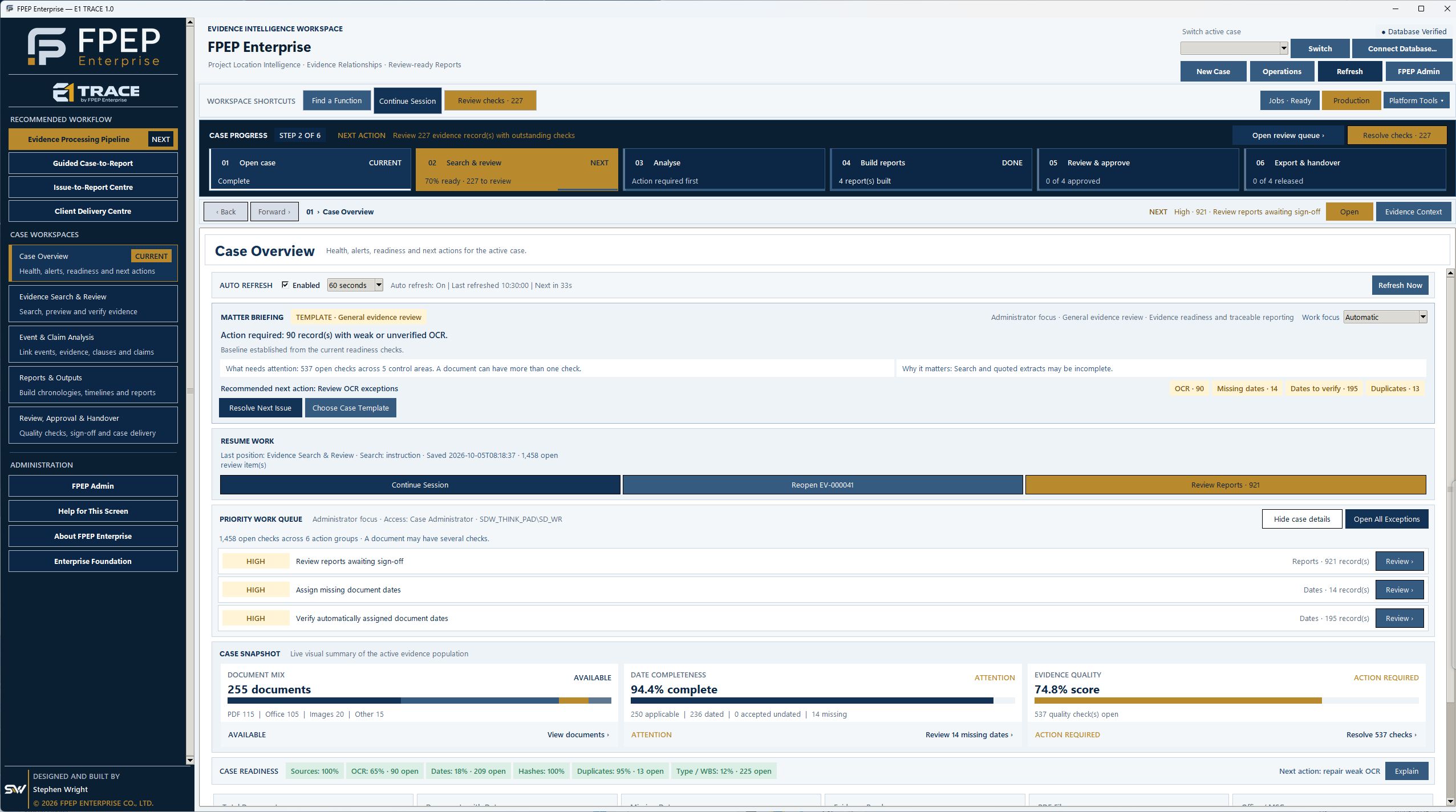
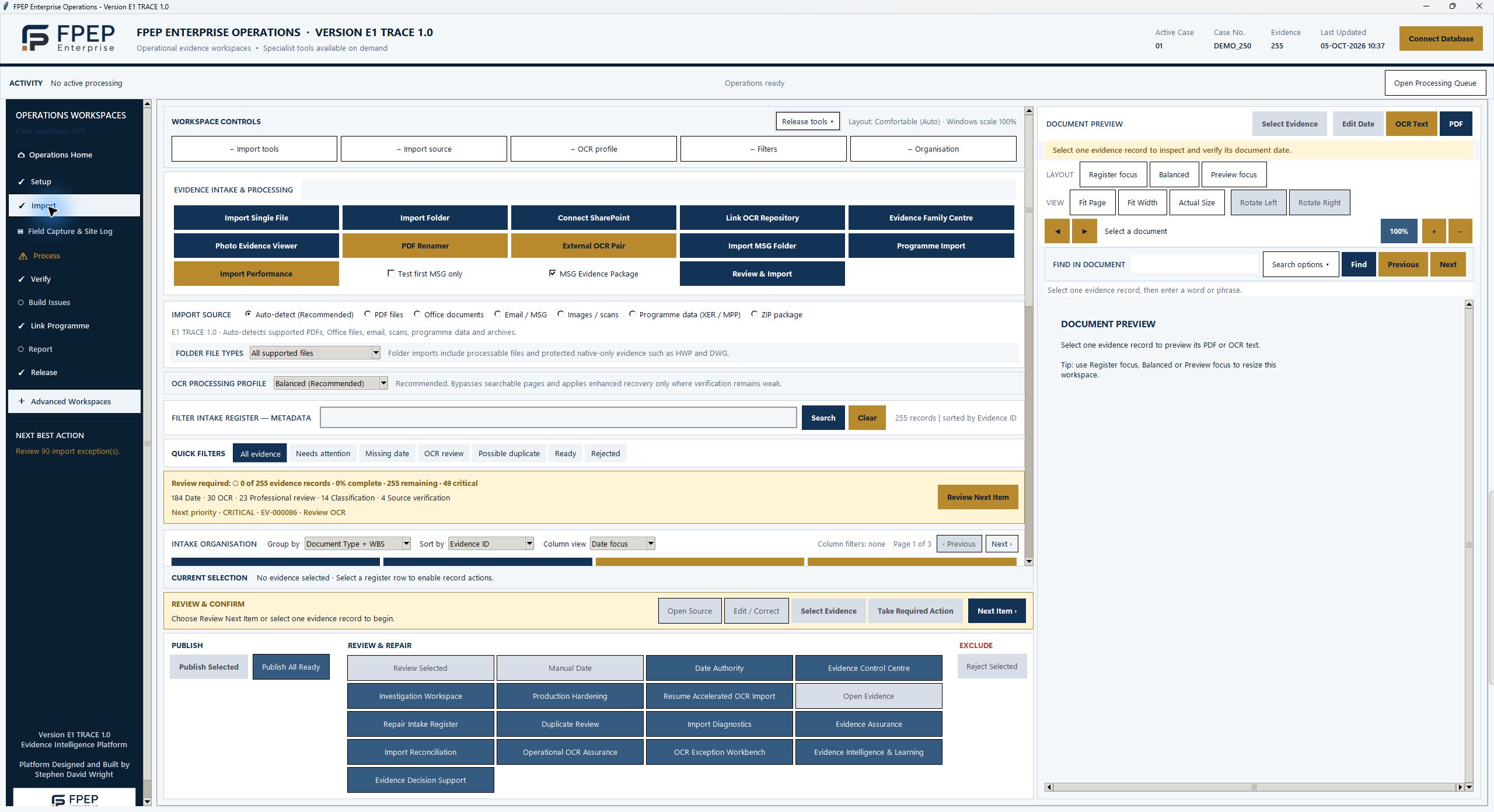
Import documents, folders, email and programme data, with OCR profile and source controls visible. Microsoft connections depend on permissions and configuration.
Search exact words and related terms. This demo shows 54 results, with document dates, match information and review checks alongside the selected record.
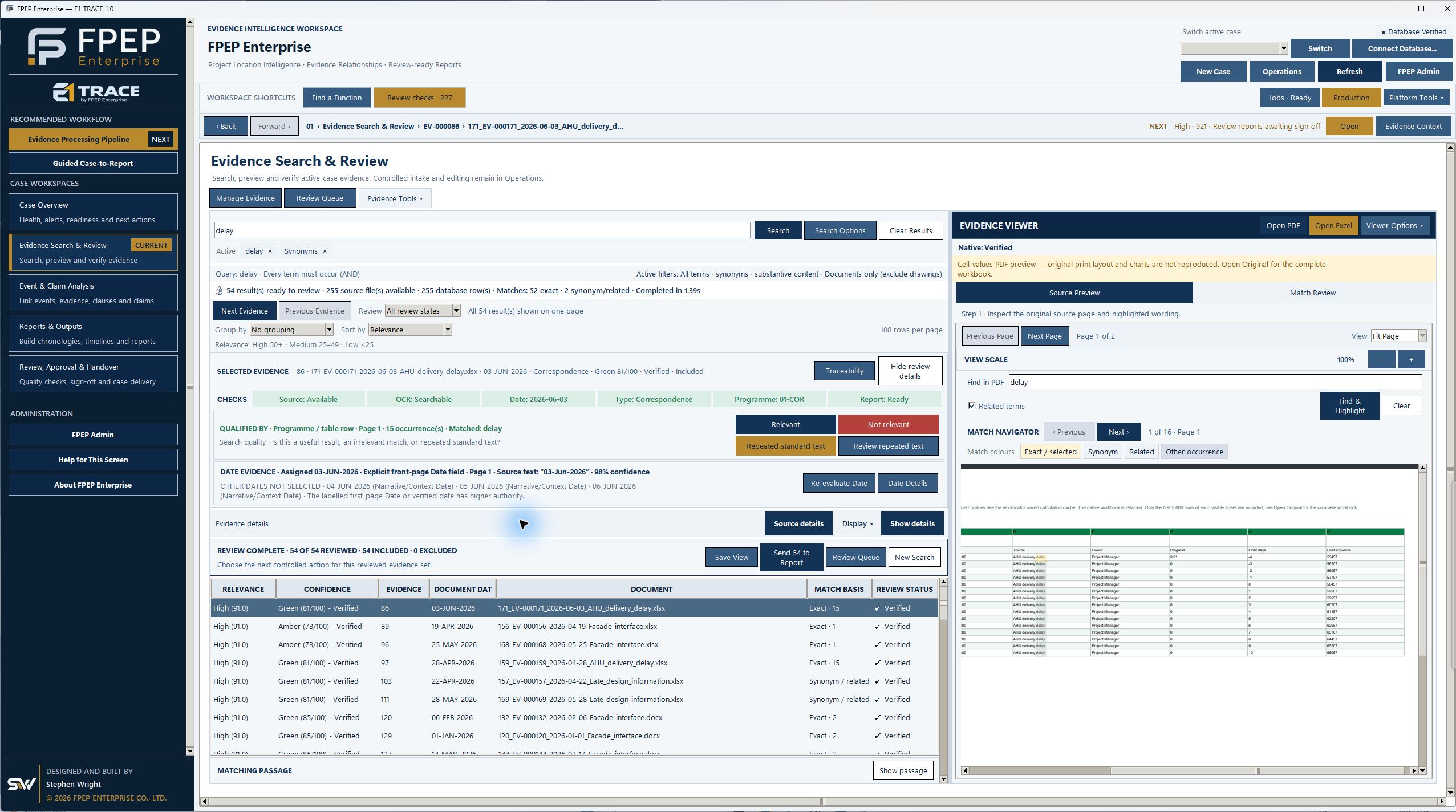
Evidence references identify records; document dates describe their timing. These search results are sorted by relevance, not chronological order.
Inspect the source preview and highlighted wording alongside match navigation. The displayed spreadsheet preview states its layout limitations.
Evidence references identify records; document dates describe their timing. These search results are sorted by relevance, not chronological order.
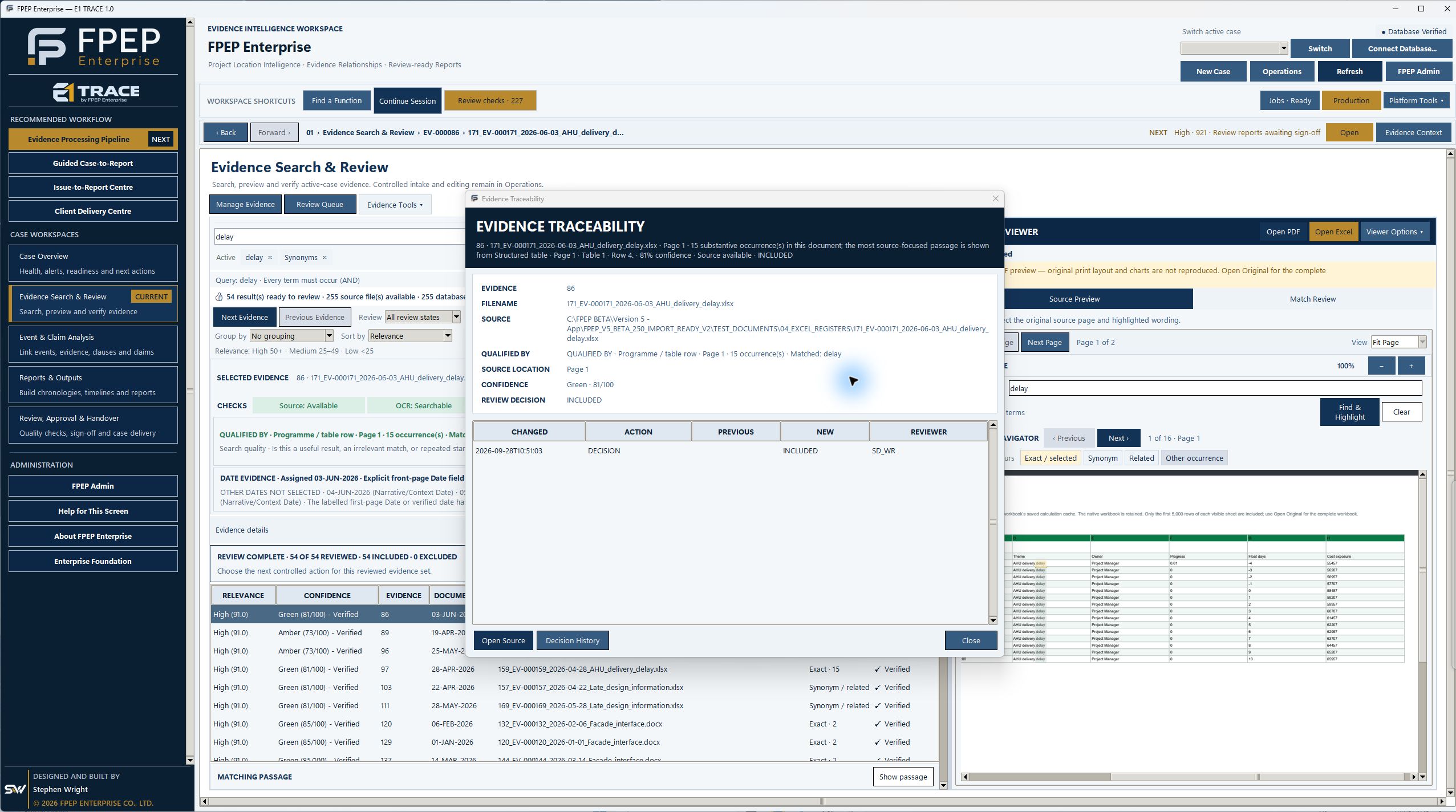
A source-linked extract retains the supporting passage, citation and verification context. Original image from the development-story brochure.

Inspect the evidence ID, original filename, source location and recorded review decisions in one traceability view.
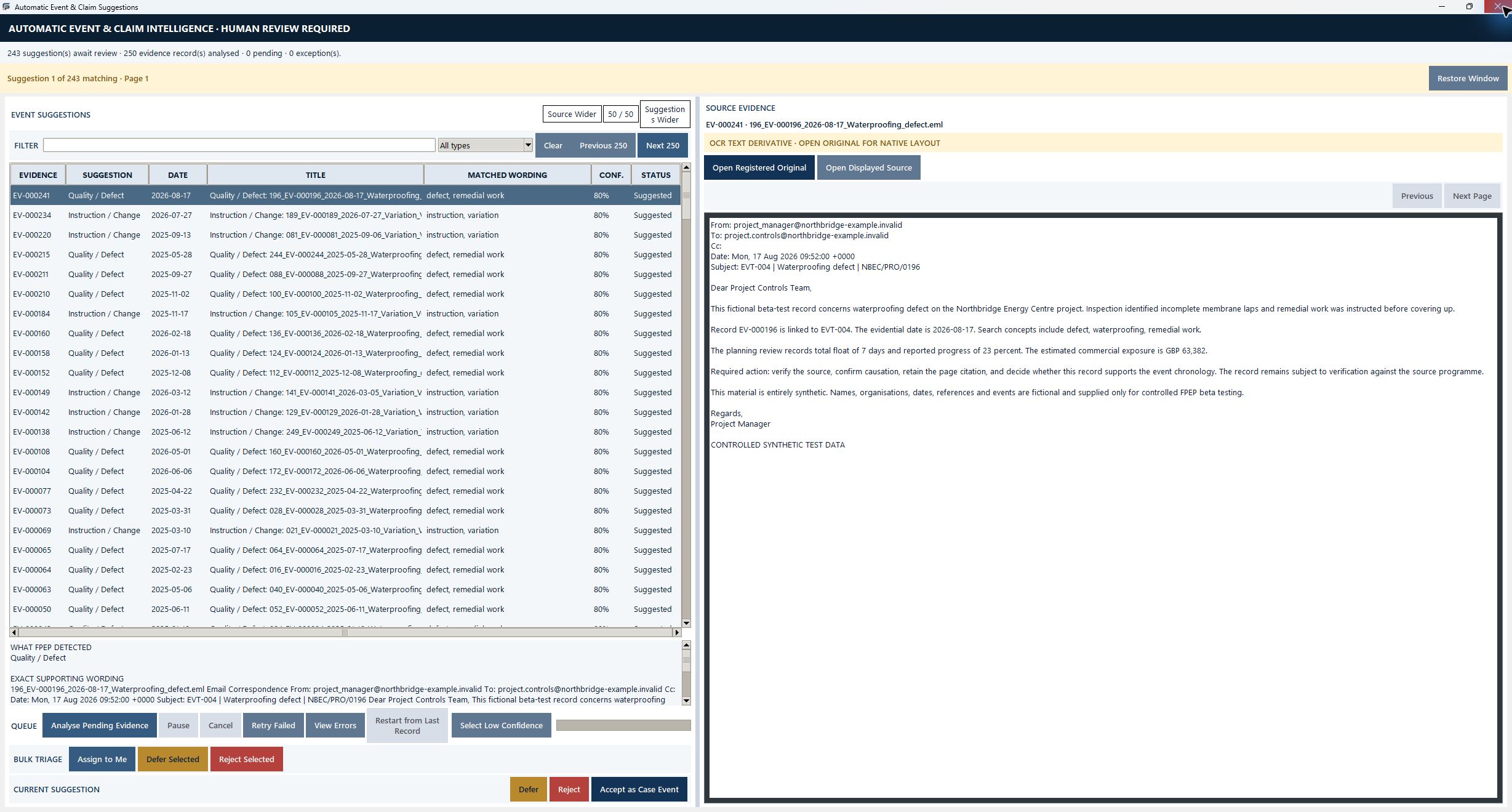
Inspect a suggested event beside its source evidence. The demo contains suggestions awaiting human review; no suggestion was accepted during capture.
Optional field capture provides a submission inbox and human review before event promotion. This configuration view has no submissions and its gateway is stopped.

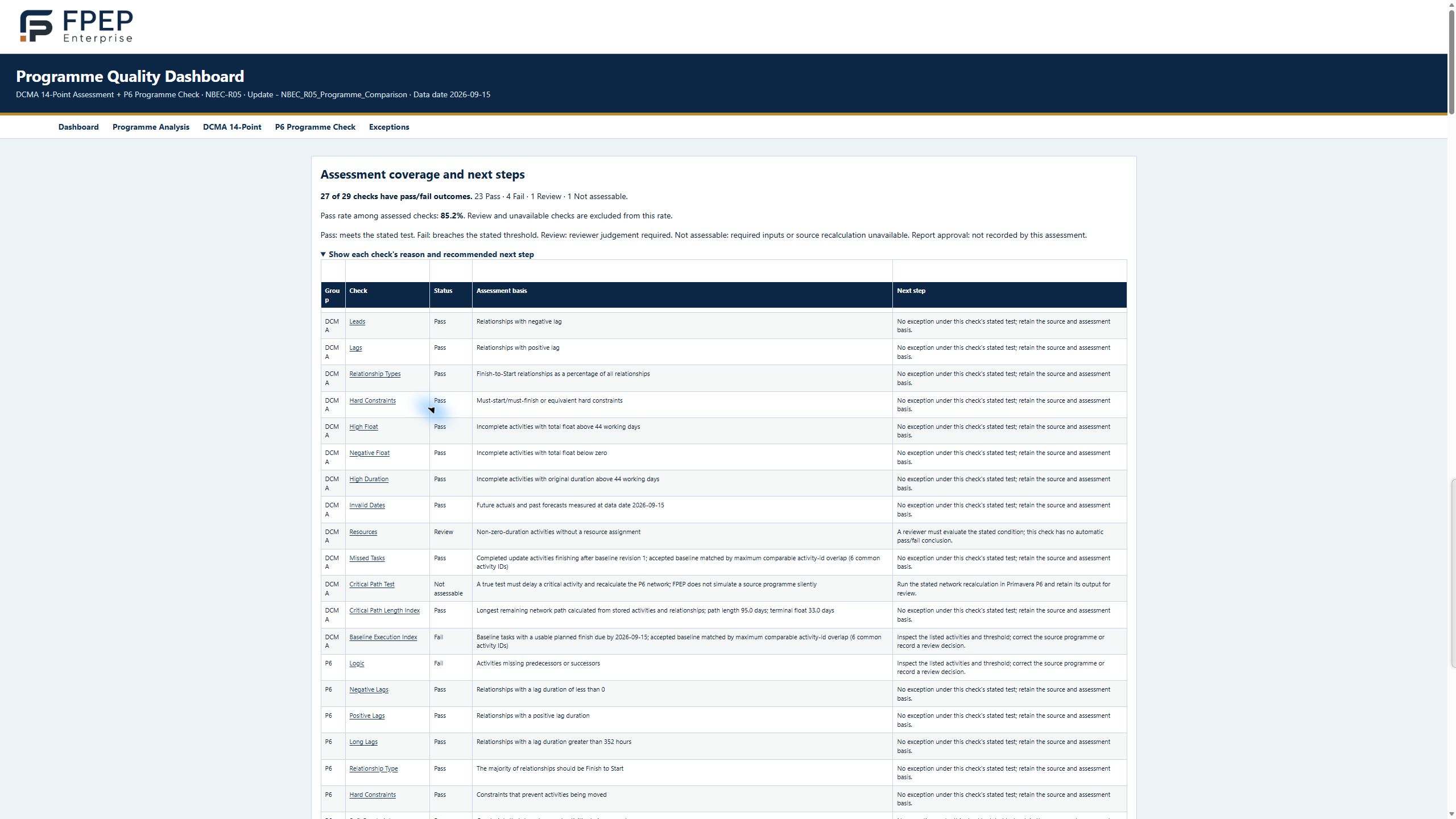
Review DCMA and P6 checks with distinct pass, fail and review outcomes. Demo figures are illustrative; checks do not establish causation or entitlement.
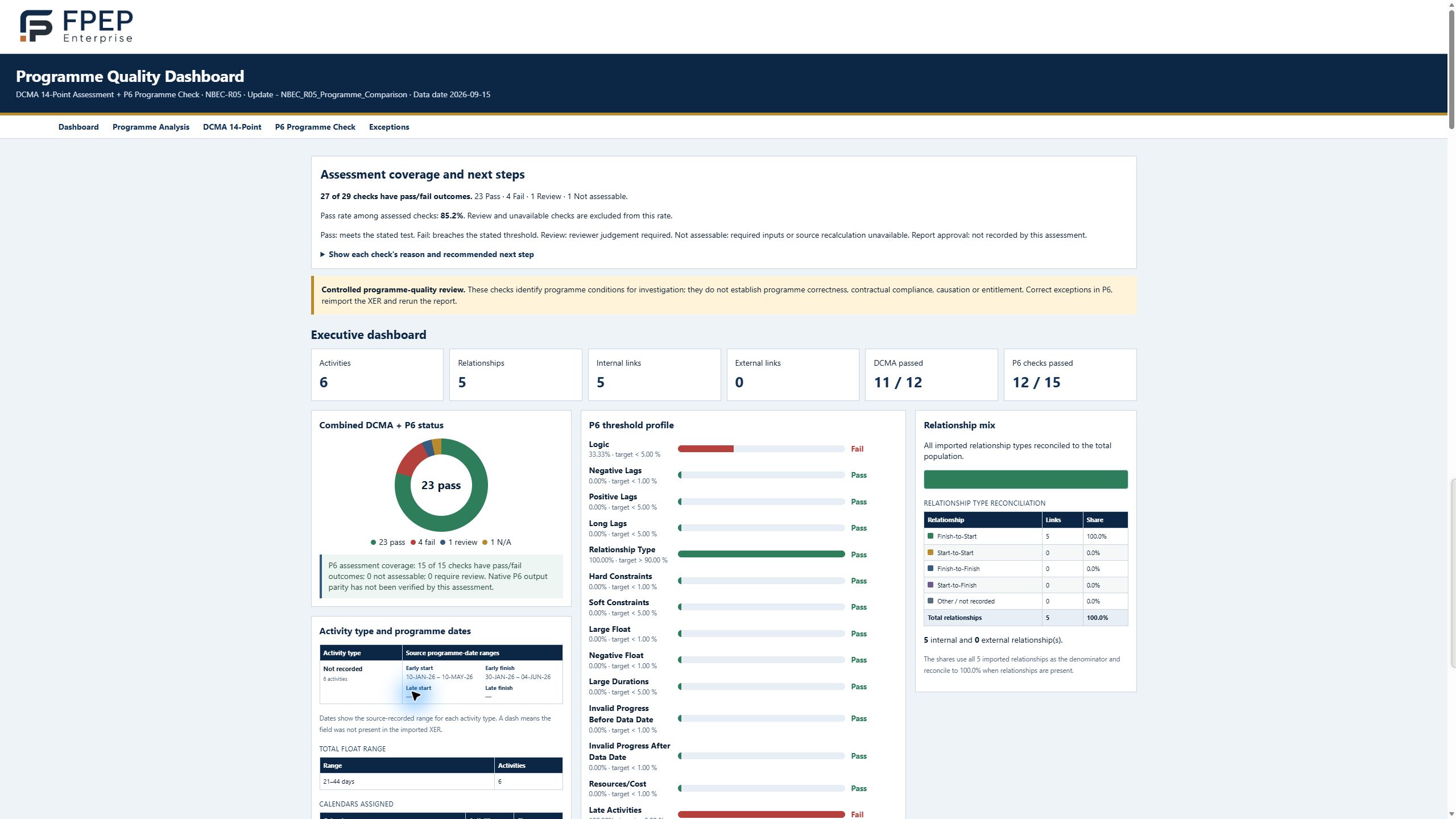
The programme-quality view groups recorded exceptions and recommended actions for investigation and correction in the source programme. Brochure image.
Compare programme revisions, progress curves and changes in completion dates using the current demonstration report.

Choose a report purpose, define its scope, review the evidence and resolve readiness checks before generation. The current workspace includes case summaries, chronologies, programme progress and evidence readiness.

Choose the report purpose, search terms, evidence dates and detail level before previewing the supporting records. Original image from the development-story brochure.
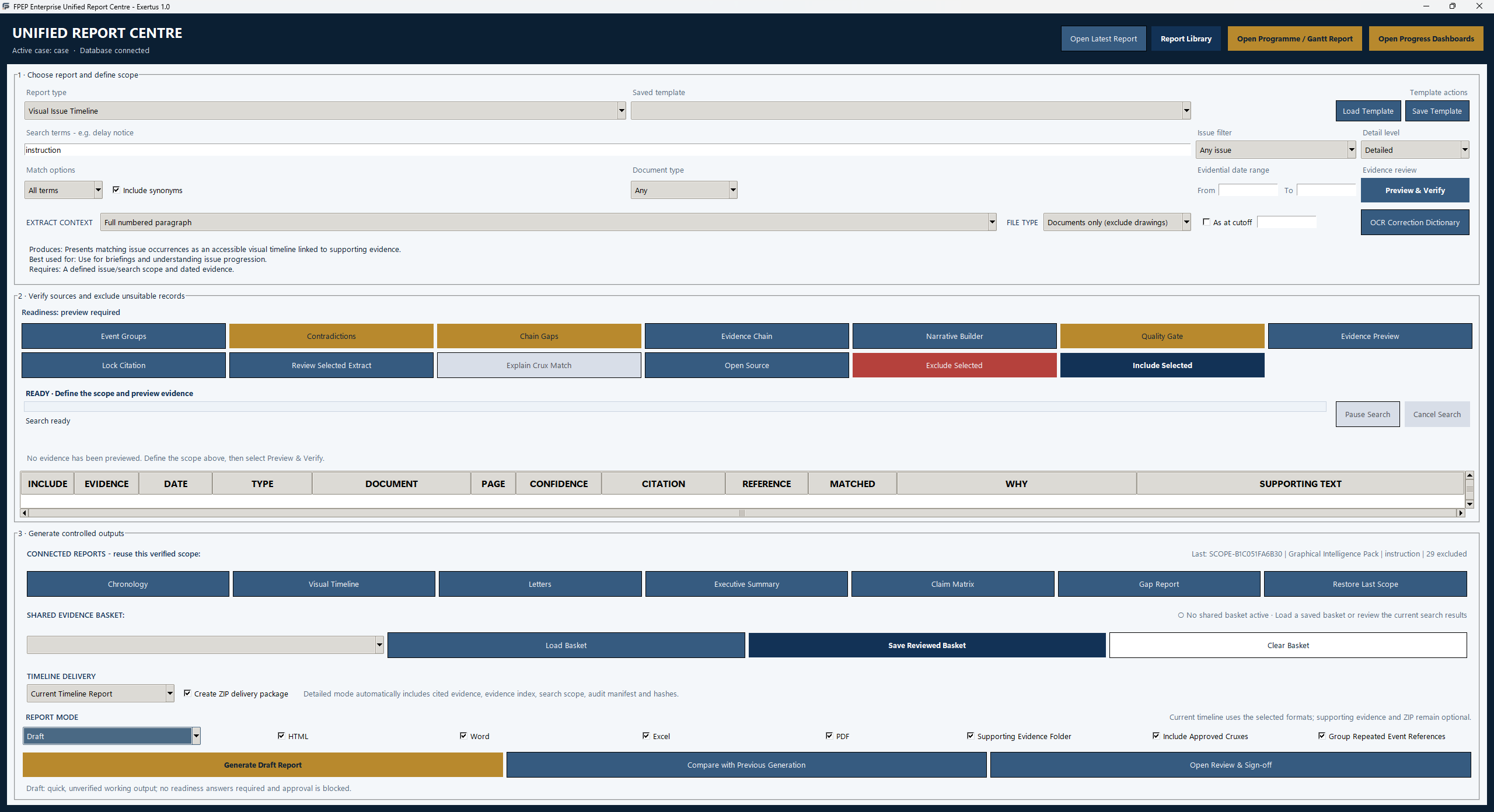
The report evidence view displays source rows, supporting text and inclusion controls. This brochure screenshot shows processing in progress, not completed approval.
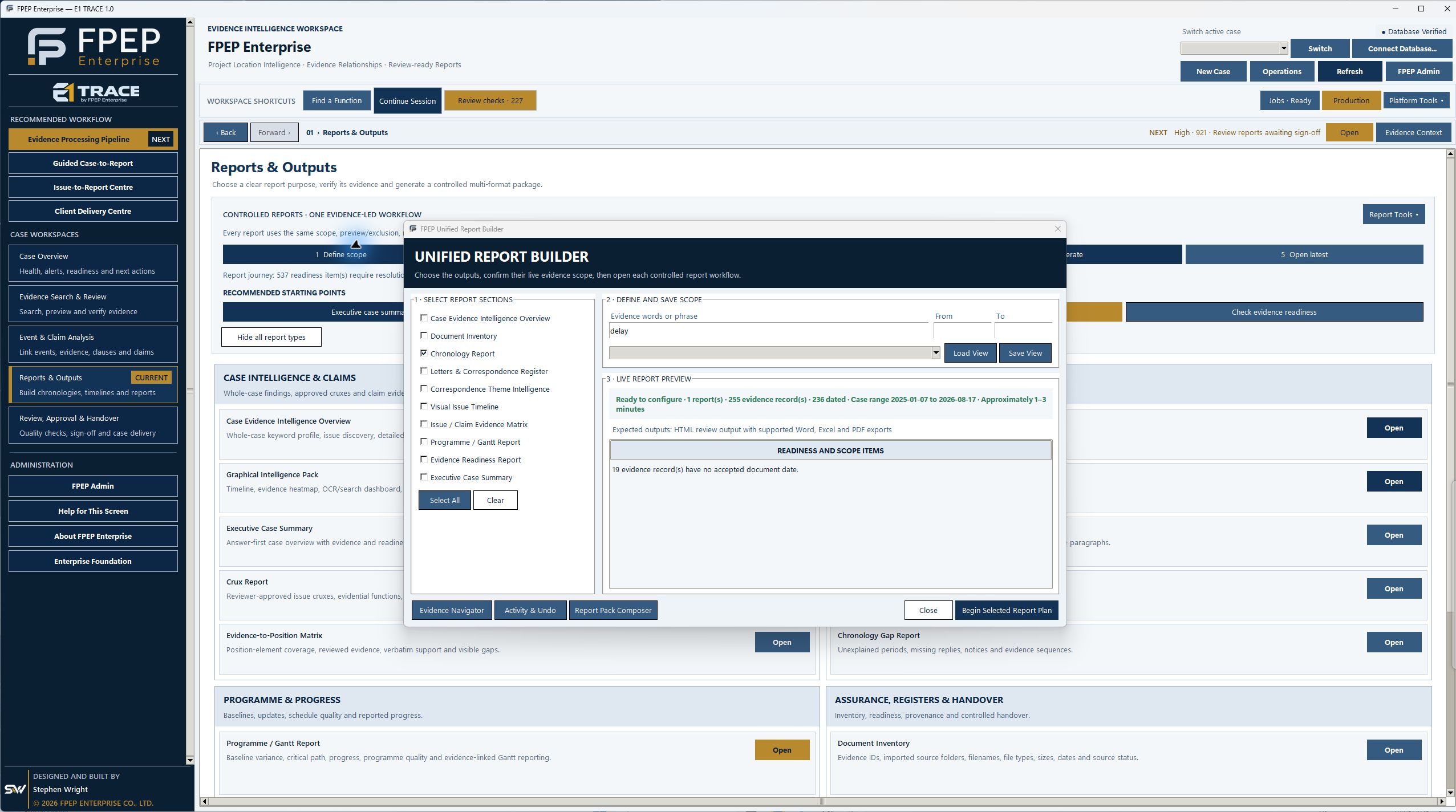
The Evidence Readiness preview makes missing and unverified dates visible before controlled issue. These demonstration checks remain unresolved; no report was approved or issued.

Use the review queue, date actions and case governance routes to address outstanding work before handover.

IMPORT & CONNECT
Start with local project folders or select records from Microsoft document libraries. Keep the source context alongside the imported evidence.
Bring PDFs, Word files, Excel workbooks, MSG or EML emails, P6 XER and Microsoft Project MPP programmes, and drawing files into the project workflow. Retain source records alongside the review.
Sign in to discover available libraries and select files for controlled local copies. Access depends on your Microsoft account permissions and your organisation’s connection setup.
The connector records source links, file metadata and integrity hashes alongside the intake snapshot. Remote-change checks help identify records that need further review.
Microsoft connections use read-only access and controlled snapshots. They do not edit the source library or provide continuous two-way synchronisation. Confirm connector availability and configuration for your E1 Trace deployment.
Discuss your import and connection requirements →Explore chronology, timeline and programme outputs. Historical examples are labelled with their originating version.
OPTIONAL WORKFLOW FOR LIVE PROJECTS
For teams working on active projects, add field capture to bring site observations and supporting records into FPEP while work is under way. Keep the source context as the team considers events, change and potential impacts.
When to choose this option. Use it when a live project team needs a consistent route for recording observations on site and passing them to the people responsible for review. FPEP can also be used to review existing project records without adding this field-capture workflow.
How it works. The site team submits an observation and attachments through the configured gateway. A reviewer checks the submission in the inbox, returns it for clarification or accepts it, and arranges evidence registration or event promotion as appropriate. The reviewed information then supports notice, programme and commercial review.
Record an observation with its location, date and supporting attachments. Keep the field account available for the reviewer.
Transfer submissions through the configured project gateway. Secure remote access requires an appropriately configured HTTPS deployment.
Review incoming observations. Accept, return or reject a submission, retaining the review decision before event promotion.
Bring supporting records into the evidence workflow, retaining their source references and review status.
Consider whether the observation should become a case event. Accepted submissions can be promoted following review.
Review the event alongside its supporting evidence, then identify the further assessments and actions required.
Consider variation, management of change (MOC) and notice requirements, including the responsible person and next action.
Examine the relevant activities, dates and programme context to assess potential time implications.
Use the reviewed event and supporting records as inputs to an assessment of commercial implications.
Discuss the option for your project. Agree the participating site team, reviewer responsibilities, gateway and device access, and how accepted submissions enter the case. Availability, deployment and any associated licensing or service scope are confirmed before setup.
Discuss the live-project option →PRACTICAL QUESTIONS
No. This is a public information website. E1 Trace is a separate Windows desktop application, so there is no website account to log out of.
E1 Trace is a Windows desktop application. Contact us to confirm installation and system requirements for your deployment. The website and screenshot tour can be viewed on other devices.
Confirm your Windows environment, organisation’s installation policy and intended workload before deployment. This page does not promise native Mac, iPhone or iPad application support.
The current build guide describes extracting the complete package and starting its included launcher. A separate Python installation is not required. During an access discussion, confirm the package, permissions and any additional tools needed for your file types.
The demonstrated workflow uses a case database and evidence files in the local working environment. Microsoft-library imports create controlled local snapshots with source references. Plan storage access, backups and retention with your organisation before importing client records.
The public website does not provide project-file upload. Agree a suitable transfer method separately for a professional-services assignment.
Microsoft connections require account access to the relevant libraries and your organisation’s connection setup. They use read-only access and controlled snapshots rather than continuous two-way synchronisation. Confirm permissions and any administrator involvement with your IT team.
Searchability depends on the source format and the quality of extracted text or OCR. MPP programme conversion and native drawing handling may require additional tools or suitable exports. Use a demonstration to check representative files and any limitations; see Import & connect.
Contact us to confirm E1 Trace availability, licensing, setup requirements and terms. There is no software checkout on this website.
Professional-service scope, deliverables and fees are agreed separately before an assignment begins.
Programmes: P6 XER files use the programme importer. MPP files are converted to XML using Microsoft Project. If automatic conversion is unavailable, you can prepare an XML export in ProjectLibre. Original programme files are retained.
Drawings: DWG, DXF and DWF files are retained and opened in a compatible application. Retaining a drawing does not automatically extract its CAD content.
Yes. The proposed scope can support claim preparation, review or response through evidence organisation, factual chronology and referenced supporting documents. The engagement will define the questions to address and responsibilities for conclusions.
A quality check identifies findings in the programme. A revision comparison shows recorded changes. Establishing the cause of delay requires further assessment of the programme, events and supporting evidence.
Tell us about your role and project records. We can show you relevant features and discuss availability, setup and licensing.